AutoFlow for Google Flow
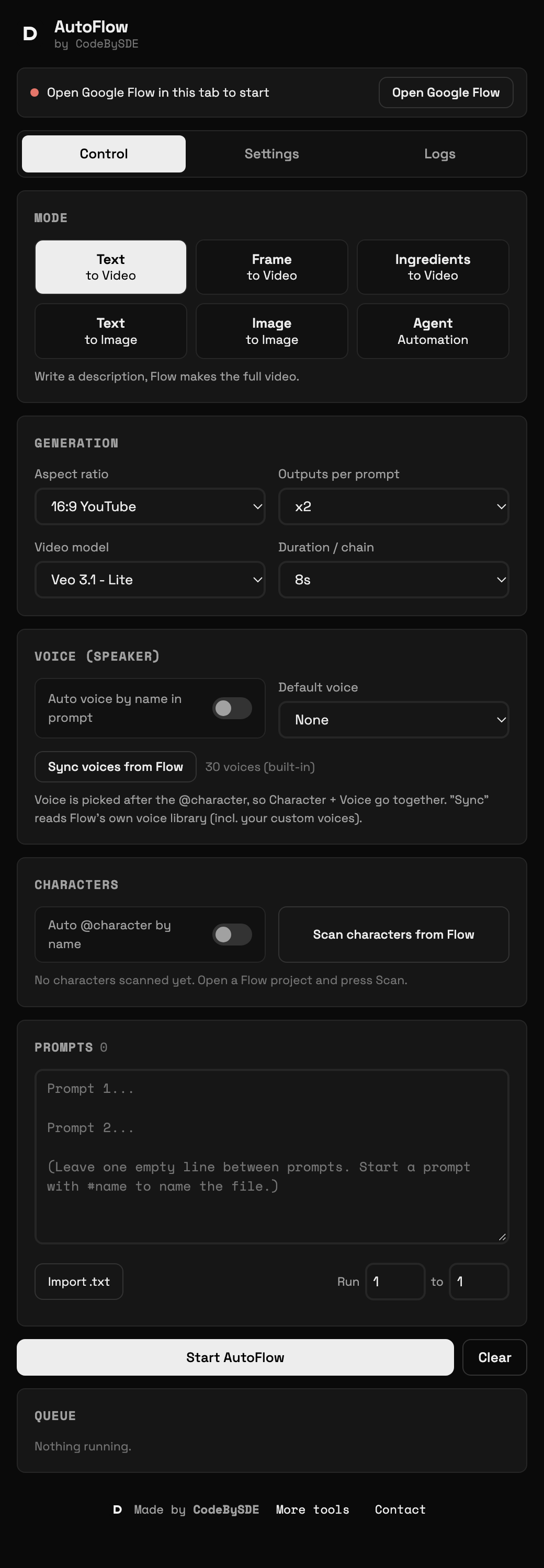
AutoFlow is a Chrome extension that queues many prompts on Google Flow, generates videos and images in bulk, and downloads each result with a clean file name. Write your prompts, press start, and let it run.
AutoFlow is a Chrome extension that queues many prompts on Google Flow, generates videos and images in bulk, and downloads each result with a clean file name. Write your prompts, press start, and let it run.
AutoFlow is a Chrome extension for Google Flow. Paste a list of prompts, choose a model and settings, and it submits them one after another, waits for each result and downloads it for you.
It runs inside your own browser session, so you stay signed in to your Google account and nothing is sent to our server.
No. It only runs on flow.google.com and labs.google/fx pages.
The extension uses Chrome's debugger interface to type and click like a real user. Keep the banner open while a queue is running.
In your Downloads folder, inside the folder name set in the extension settings. Turn off Ask where to save each file in Chrome settings.